Search This Blog

Friday, January 13, 2012

15 Highly Effective Single-Page Web Layouts


Single page or one page design is a hot trend now a days. Everyone loves to have fast and quick way to get what he/she wants. Single page web layouts provide your visitors all the quickness by compiling entire content you want in a single page. They are much easy to navigate and functional as well as attractive and good looking.

One page layouts have been gaining popularity over the past year. They are pretty easy to manage and you can really think outside the box when you design them. Here I am going to present a variety of highly-creative and beautiful single page layout designs for your inspiration.


Thursday, January 12, 2012

How to create 3d effects in Photoshop CS3

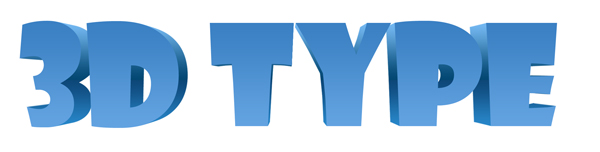
When you saw the title, you probably said “Impossible!” Not entirely true. We can create extrusions even if the command isn’t available, adjust the depth and direction of the extrusion path or use shading and all we need is a different point of view on things. Sounds pretty good so far, huh?
Difficulty: beginner
Completion time: 3-5 min
Tools: Photoshop CS3
Resources: Showcard Gothic font

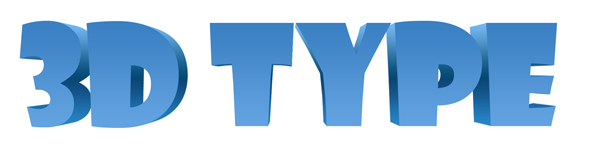
Final Image Preview

final pixel 77 3d effect tutorial in cs3 How to create 3d effects in Photoshop CS3

STEP 1

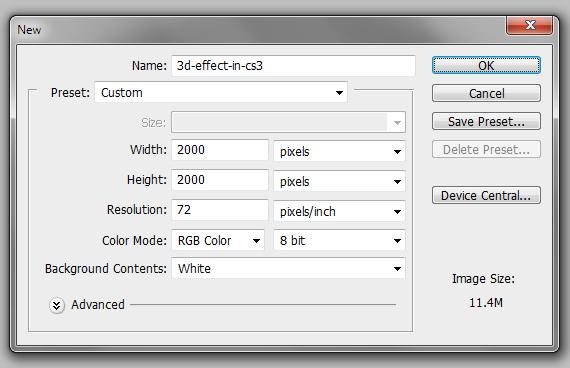
Create a document of 2000 x 2000 px in RGB color mode (File > New…) or a similar file size.
1 pixel 77 3d effect tutorial in cs3 How to create 3d effects in Photoshop CS3

STEP 2

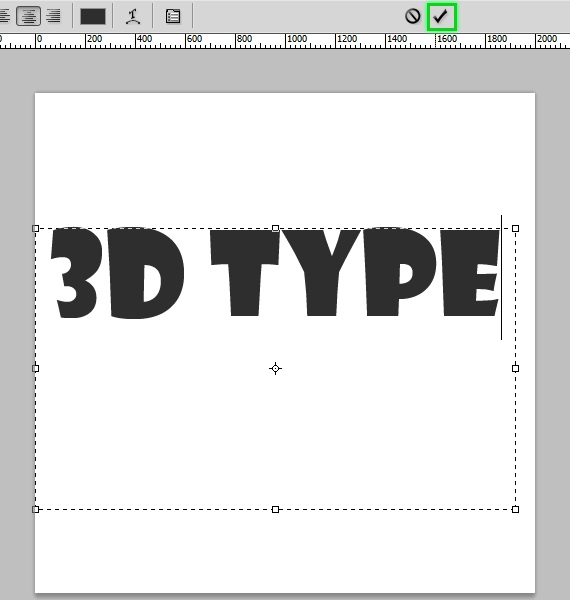
Grab the Horizontal Type Tool (T), draw a type box with the about the same width as the canvas. Type in your desired text and hit the “OK” button in the top side.
2 pixel 77 3d effect tutorial in cs3 How to create 3d effects in Photoshop CS3

STEP 3

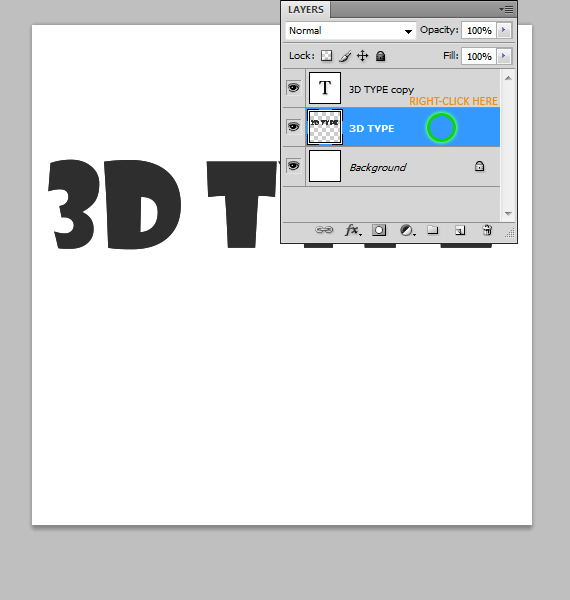
Duplicate this layer (CTRL+J). Select the original layer, make the text another color, go to the Layers palette and right-click near the layer thumb. Select “Rasterize Type”.
3 pixel 77 3d effect tutorial in cs3 How to create 3d effects in Photoshop CS3

STEP 4

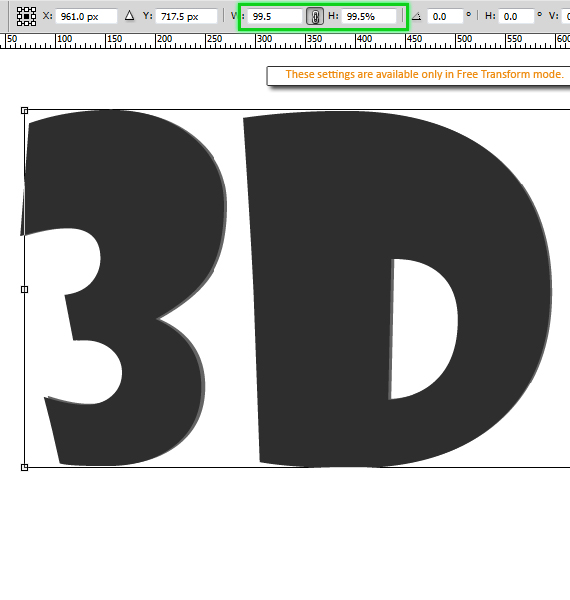
Hit CTRL+T to enter Free Transform Mode, click the chain between the percentile values and change the value to “99.5%”. Hit Enter.
4 pixel 77 3d effect tutorial in cs3 How to create 3d effects in Photoshop CS3

STEP 5

Duplicate this layer (CTRL+J). Select its original and repeat STEP 4.
5 pixel 77 3d effect tutorial in cs3 How to create 3d effects in Photoshop CS3

STEP 6

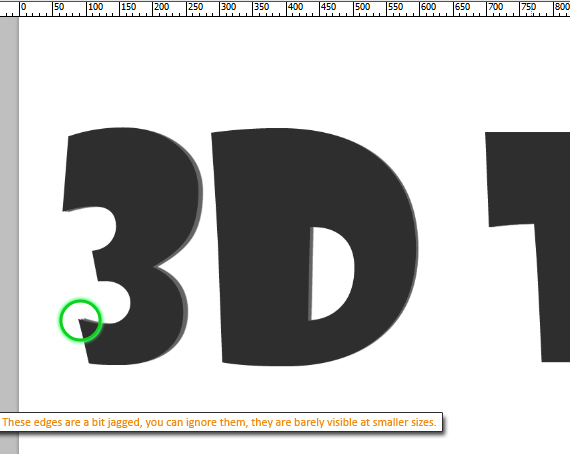
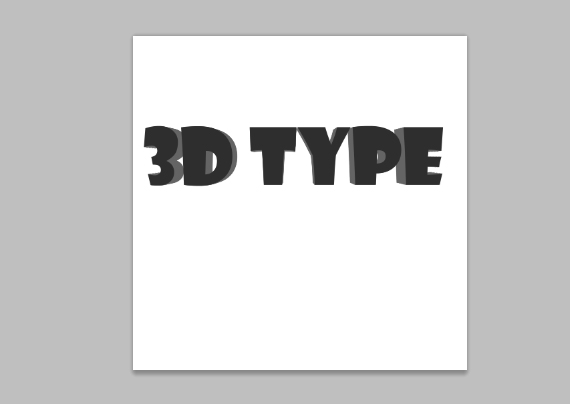
Repeat this step until you get a decent “extrusion” height.
6 pixel 77 3d effect tutorial in cs3 How to create 3d effects in Photoshop CS3
6.1 pixel 77 3d effect tutorial in cs3 How to create 3d effects in Photoshop CS3

STEP 7

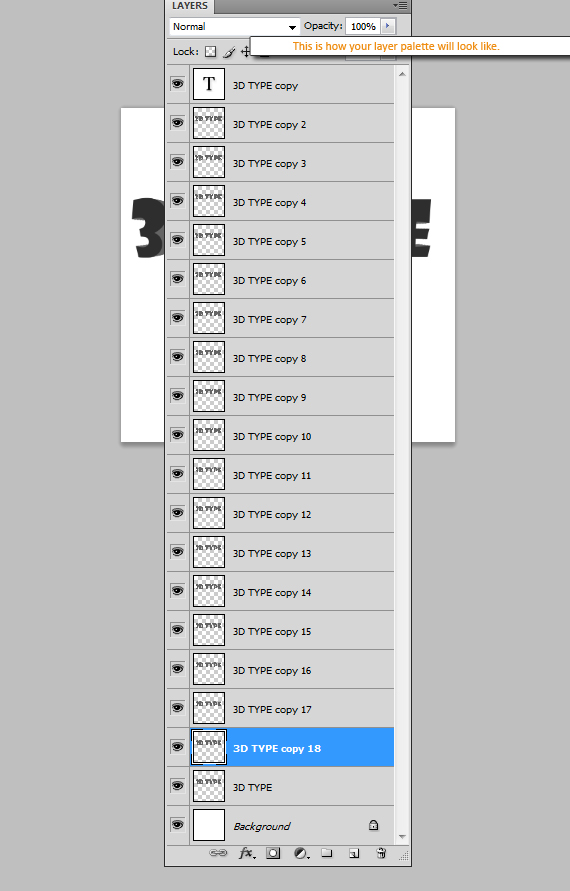
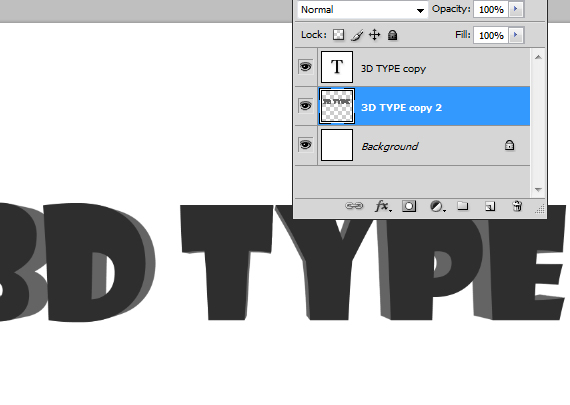
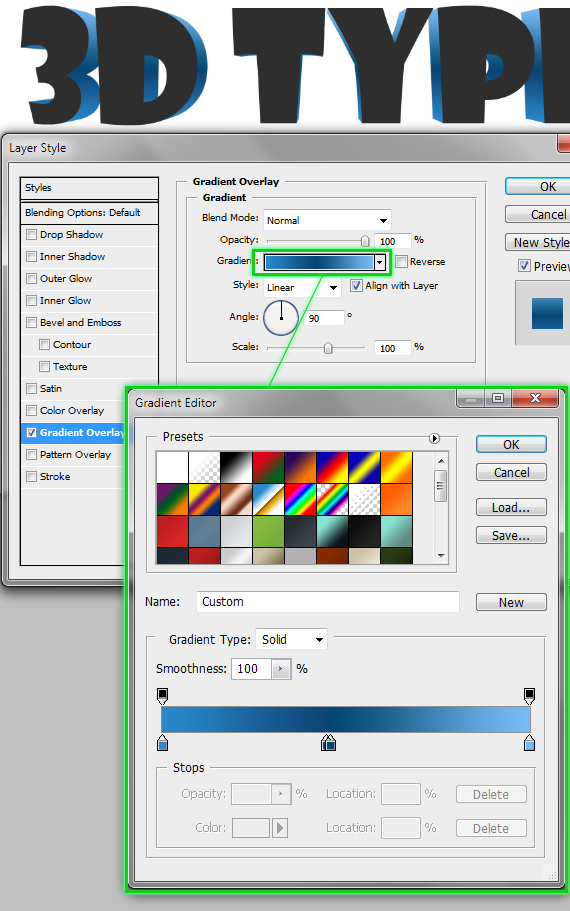
Select all layers except the top-most one and “background” and hit CTRL+E to merge them. Click the “fx” in the Layers palette and select “Blending Options”. Use the settings below.
7 pixel 77 3d effect tutorial in cs3 How to create 3d effects in Photoshop CS3
7.1 pixel 77 3d effect tutorial in cs3 How to create 3d effects in Photoshop CS3

STEP 8

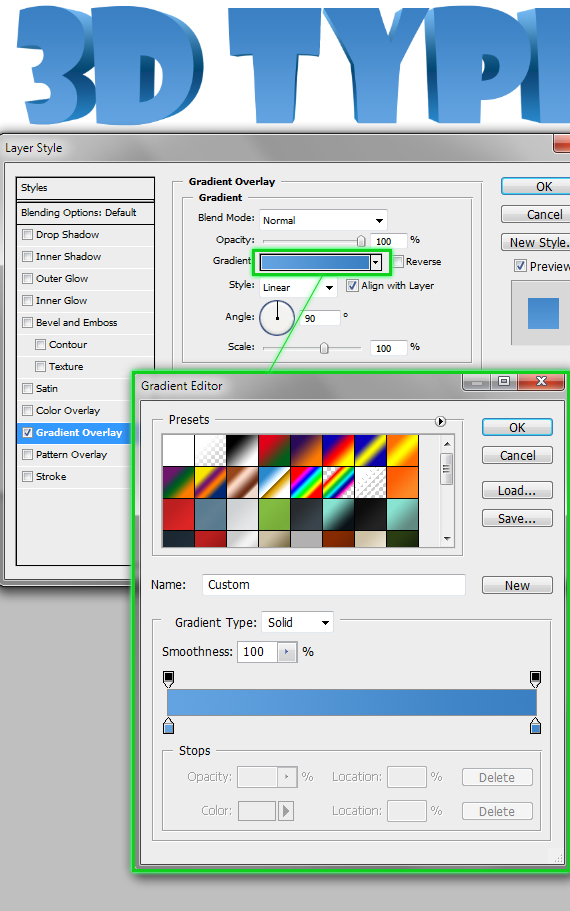
Select the top-most layer and add a similar blending setting, like below.
8 pixel 77 3d effect tutorial in cs3 How to create 3d effects in Photoshop CS3

Done!

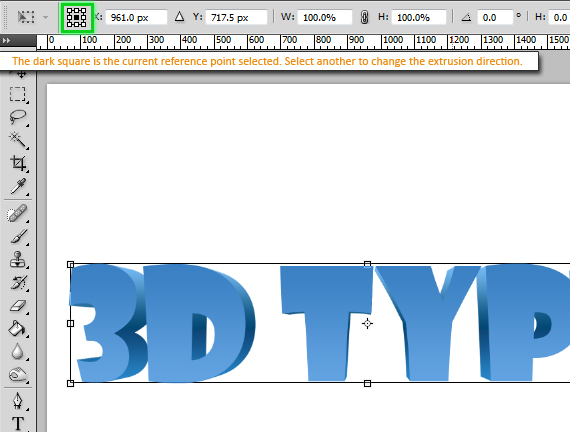
You can explore different extrusion paths if you change the reference point for the Free Transform mode.
9 pixel 77 3d effect tutorial in cs3 How to create 3d effects in Photoshop CS3
final pixel 77 3d effect tutorial in cs31 How to create 3d effects in Photoshop CS3

Wednesday, January 11, 2012

12 Illustrator Resolutions for 2012


12 For 12

I can’t believe it’s already 2012! 2011 went so quick and I didn’t get time learn everything I set out too. This year I decided to write down my resolutions and share them so I might feel more obligated to stick by them. I have a bunch of resolutions but here are my Illustrator specific Resolutions. What are yours?

1. Learn to implement the Illustrator HTML5 Pack

Adobe Labs released an Illustrator HTML5 pack that provides some support for HTML5, CSS3, and extends SVG capabilities in Illustrator CS5. I haven’t looked into the capabilities of the pack yet, but really want to see what it can do.

2. Learn To Write Scripts

One kind of far fetched resolution is to learn how to create Illustrator Scripts. I would love to write scripts for some common and uncommon tasks I run into everyday. I know some basic javascript, but I think I have a long way to go before I can crate some cool ones.

3. Master The Shape Builder Tool

Adobe introduced The Shape Builder tool in CS5. With the Shape Builder tool, you can create complex shapes by merging and erasing simpler shapes. The kind of construction that I use the Pathfinder panel for. I think it could really speed up some of my illustration if I used the Shape Builder Tool more.

4. Use More Symbols

I’m all about finding more efficient ways to use Illustrator. I swear by using the appearance panel so i’m not sure why I don’t use Symbols more. They’re great for multiple instances of an object in docs like logos, icons, and so on. Moreover you can easily make changes to the original Symbol to propagate to all instances of the symbol. You can also do some pretty cool stuff with the Symbol Sprayer tool.

5. Master Meshes and Blends

It feels like this is on my list every year and I just can’t get around to it. It’s partly because I feel meshes and blends don’t fit within my style, but I think that’s just a cop out so I will set out to master these tools again!

6. Use more Bristle Brushes

This is another subject I’ve put off for too long. I also make the same excuse that the style of the brushes doesn’t really fit with my design and illustration style. But I have found some decent uses for the brush, I just need to explore them more.

7. Workspaces

Since we are on the subject of proficiency, another one of my resolutions is to set up more defined Workspaces. I have a couple I use but I think I can really bump up my efficiency by having separate workspaces for illustration, web, design, typography, connecting, and testing.

8. Use the Perspective Grid

One other relatively new Illustrator feature I need to learn more about is the Perspective Grid. There have been a bunch of times I’ve thought “You know what… I should use the perspective grid for the element”, then I try to use it and shamefully give-up. Not that it’s hard to use, I just need to get used to it.

9. Extend Illustrator Functionality Into Other Programs

I use Illustrator in about 90% of my work. Sometimes I feel I’m limiting what I can do staying strictly in Illustrator so I want to incorporate Illustrator with other programs more. You can create some fun animations using Flash and Illustrator.

10. Master the Pen Tool

I can hold my own pretty good with the Pen tool, but my construction is just not good enough. I think I’ll check out Veerle Pieters Illustrator Pen tool exercises or Von’s Vector Build Methods 1 for some inspiration and tips.

11. Launch Vectips 3.0

I’ve been working on the new design for Vectips for quite a while now. At this point I really need to get it up. I think it’s looking pretty good and bet you guys will think it’s an improvement as well.

12. Create More Quality Resources

I really enjoy creating useful stock elements for Vector Mill and the content for Vectips. I really want to keep it up this year and make a bunch more content for Vectips and maybe some new resources I’ve been kicking around.

What Are Your Illustrator Resolutions?

I bet some of my resolutions parallel with your. Do you have a different resolution?


Tuesday, January 10, 2012

12 Most Powerful and Imaginative Public Interest Ads

Public interest publicity is worn to make the spectators aware of different events or problems and the most common ones are related to alcohol, violence and animal rights. Many people are perturbing about our environment, health and human relationship etc. The purpose of a standard advertisement is to market a product, a public service ad is intended to change the public interest, by raising consciousness of a matter, potentially motivating action and moving public attitude. In this article I collected 13 great examples of ads made by some of the most advertising agencies from around the world for your inspiration.


Monday, January 9, 2012

15 Fresh and Creative Google+ Icons for New Year


Google+ is now a hit in the Social Media world that attracts tons of media attention because of its innovative features like, easy sharing, live notification bar on Google search engine, hangouts, instant uploads, and stunning user interface designs. Integrating Google Plus icons into your blog or site can help drive more traffic and also improve your long term search engine optimization.
With the ever growing popularity of Google+, designers everywhere are getting their perspectives on the new and fresh Google+ Icons. So in anticipation of the huge demand for Google Plus icons, we decided to provide you a comprehensive round up of creative and fresh Google+ icons that you can use for free. These excellent Google+ icons will surely help you to create more buzz about your blog or website on search engine giant. Enjoy!